
 |
||
      |
 |
|
| Home | Riding Metro | Metro Rail Virtual Tour |
|
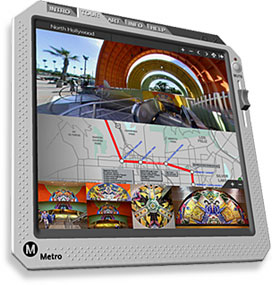
The Los Angeles Metro Red Line Subway Virtual Tour in QUickTime VR.
|
||
 |
||
|
This was a project done in the year 2004 and was live on the MTA's website in 2005.
This custom media player showcases the 16 stations of the Los Angeles Metro Red Line subway system. It shows the public art in and around each station too. The player has different sections accessed via tabs across the top of the player. The sections are - Intro -- Tour -- Art -- Info -- Help. When in the Tour section, you are presented with, from top to borrom - An interactive panoramic photo. An interactive scrollable map of the red line and purple line. Thumbnails of the artwork in a particular station. The panoramic photo is interactive. You can move through the different levels (street > mezzanine > ticket area > train platform) by clicking and holding in the image and moving your cursor left or right it will pan your viewing area so you can look around that location. When you get to the platform level, you can click into a train car's open doorway and you will get on the train and "ride" to the next station. When you reach the next station, you can click your way up to the street level, or click again on the open door of the train car to again ride to the next station. This tour is design with "in-line-of-site" navigation. Basically, you click in the direction you want to move by clicking on hotspots in the image. If you can see a way through to the next room, click there on the hotspot and you will jump to the next room. You will know your cursor is over a hotspot when it changes to a white forward pointing arrow. There is also a button in the upper right of the interface that makes the hotspots visable with a blue tint over the photo image. The button is a toggle. Click it once to show the hotspots. Click it again to make them invisible again. _ The Info section contains, Rider Guide, Schedule - Accessibility - Destinations -Credits. The Accessibility section had a narrated guide to the metro system. This player plays exceptionally well in Mac OS X 10.4.11 (Tiger, of year 2007) when coupled with FireFox3.6.28 and QuickTime 7.6. in Mac OS X 10.6.8 (Snow Leorad, of 2011) this player plays like crap in Mac OS X 10.6.8 (Snow Leorad, of 2011) when coupled with FireFox48. The pano when using cursor in the image is so slow and sticky it's unusable - but panning using the arrow pan buttons is almost tollerable. Also the "info area" at the center top of the pano appear ssolid white until the cursor is over a hotspot and then it displays the text, the function of the hotspot like "Exit via Elevator". -- The scrollable map in the cetner is useless because there is no way to pan around in it. The zooom in and zoom out buttons work but that's about it. When in Mac OS X 10.6.8 (Snow Leorad, of 2011) with Safari 5.1.10 it plays well (but includes white-out of Info text area) plays well until you click onto the train (should initiate playing of the "in transit" movie) but the pano area turns into a small black square and that's all forlks. Same for the interactie map, you can scrol it, zoom it, whatever, but if you click on a station dot, it turns into a black rectable - unusable. I tried Chrome 49 and the first page that had quicktime content on it (the pano image) told me that QUickTime wasn't supported and gave a link to learn more. i Clicked it and Chrome loaded a page that described everything about FLASH and said nothing about QuckTime. How dumb is that ? Pretty damn dumb. |
||
|
How to Navigate
|
||
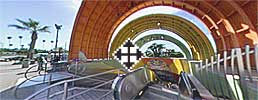 |
DIRECTION CURSOR : When in the TOUR section of the player, place the cursor into the image, click and hold and drag arcross the image in the direction you want to view (Right, Left, Up, Down) . The cursor will change to an arrow or pointing hand at "hot spot" locations in the image indicating you can click the hotspot to move forward or board the train. |
|
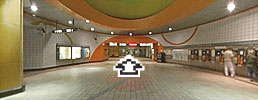 |
ARROW CURSOR : When the cursor changes to an arrow, it indicates that you can click and move in that direction. The tour follows a basic "line-of-sight" navigation so when it looks like there is a passage through to the next room, there is probably a hot spot over it to take you there. |
|
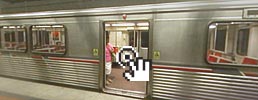 |
POINTING HAND CURSOR : At the platform level, when dragging over the open doors of a train car, the cursor will change to a pointing hand to indicate that you can board the train with a click. |
|
| There are two versions of this - 1) The stand-alone Media Player version (year 2005) - It's actually a skinned QuickTime movie. This version requires a version of QuickTime that supports Shockwave Flash 5. Any version of QuickTime from QuickTime 6.5 to QuickTime 7.2 will work. 2) The "Non-Flash" version operates as a "page-by-page" method in a web browser. It stil requires QuickTime7. |
||
| NOTE - it's difficult to find and download old versions of QuickTime. | ||
|
|
||